Account Configuration
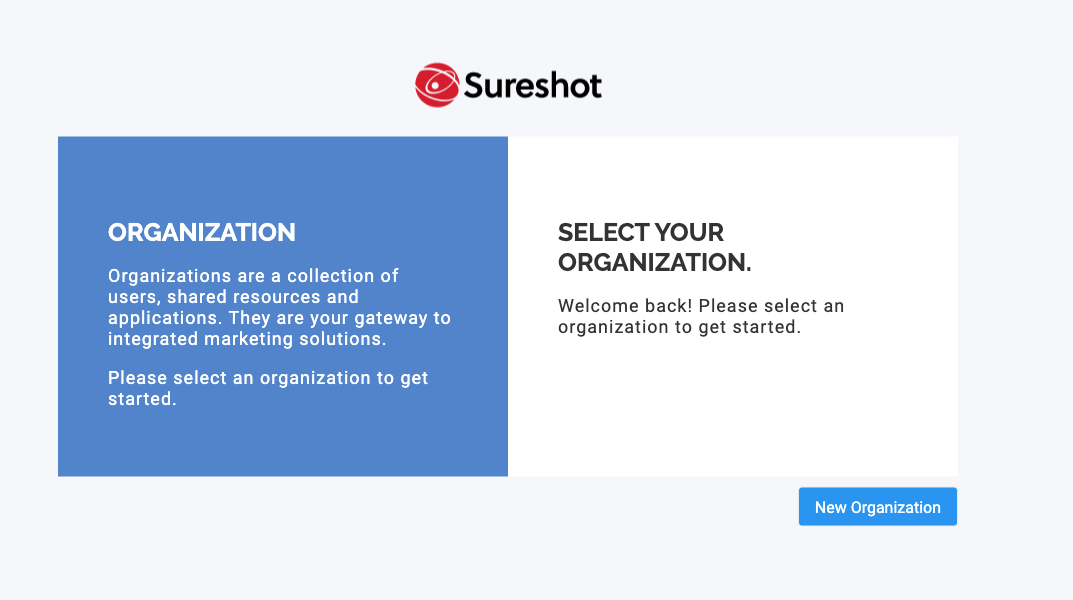
- Click
 to begin
 - Enter the Company Name. This will be used to internally designate this organization in Command.
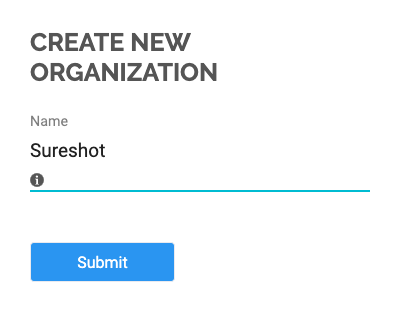
- Click

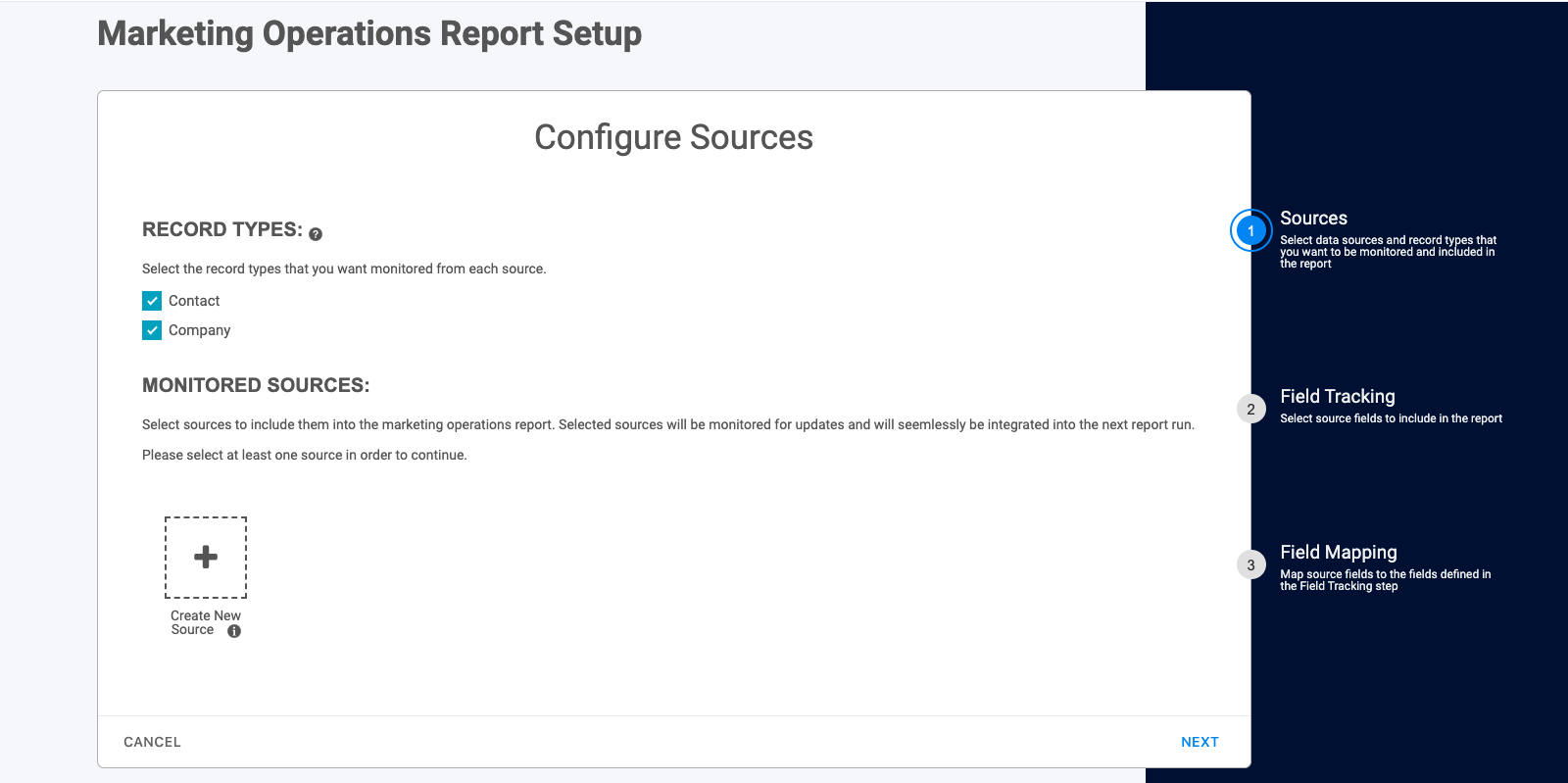
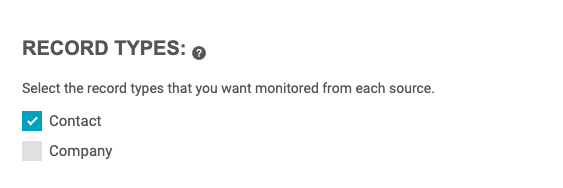
- Select the record typed to be monitored. These can be adjusted at any time
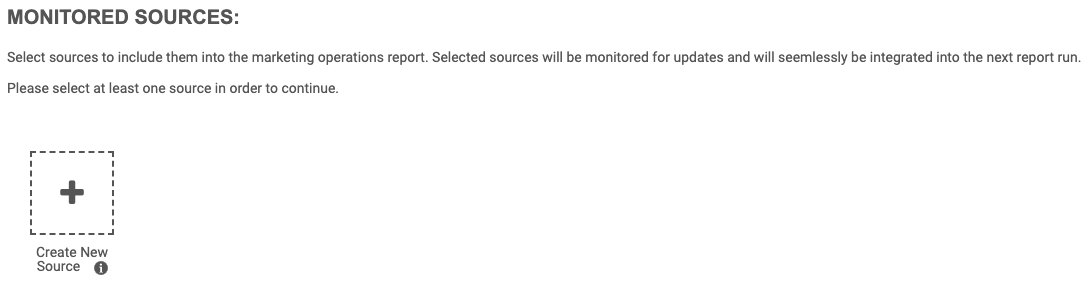
- Click "Create Source" to connect a new source to Command
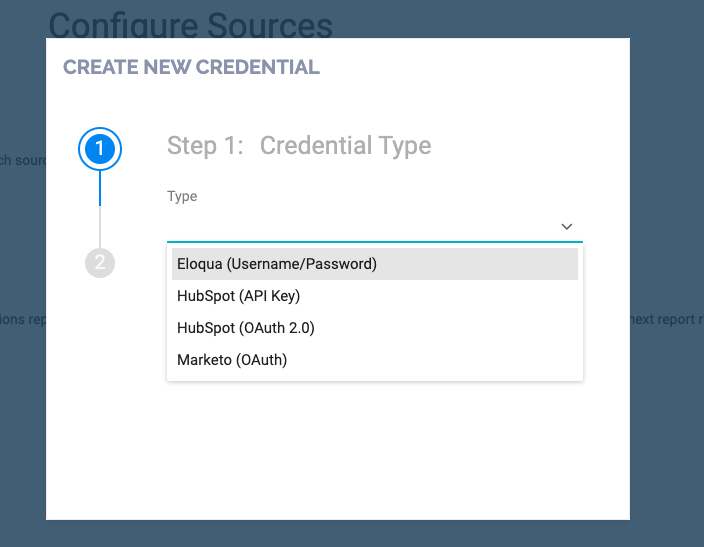
- Use the dropdown window to select the Source Type
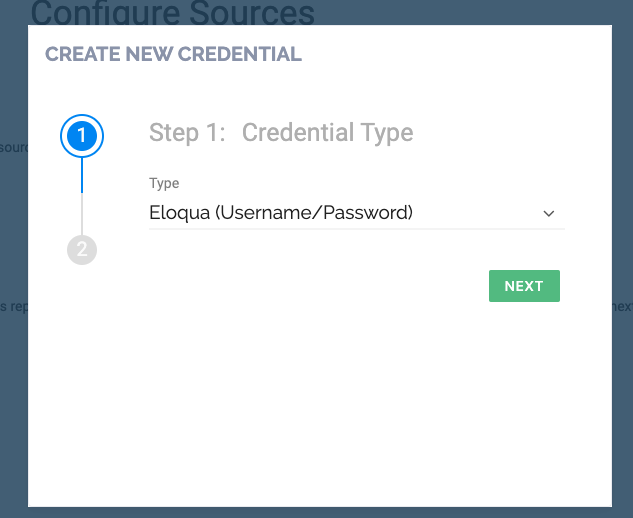
- Click Next
- Enter the platform credentials into Command to connect the source.
Note: Name is used to internally reference this new source within Command
- Click

- The new source will now appear under monitored sources.

- The user may continue adding sources. Click on the source name to activate or deactivate monitoring. Monitored sources will be highlighted green
- Once all sources are selected click

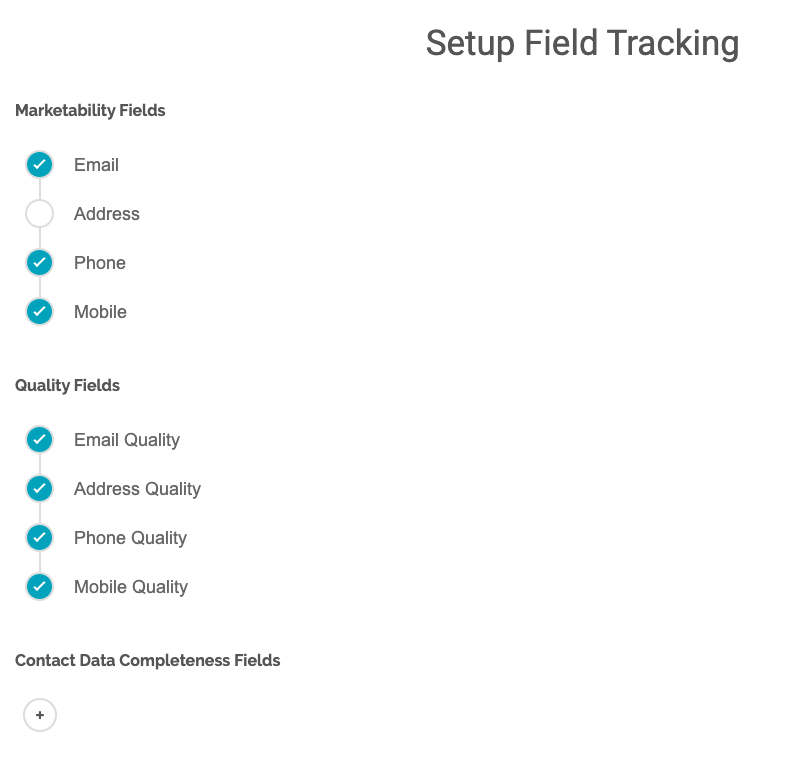
- Click on the circle to activate or deactivate any fields in Command. Fields with a checkmark will display in the Command Reports.
- Click on the plus sign under "Contact Data Completeness Fields" to add additional custom fields to be tracked by Command
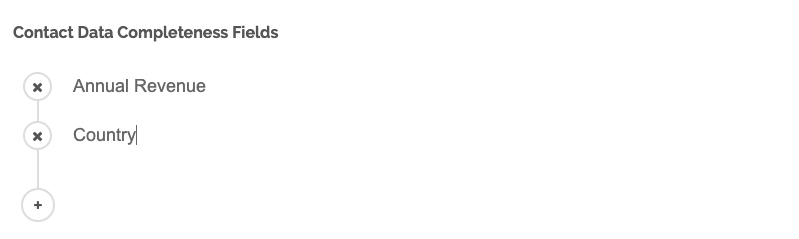
- Once all fields have been added click "Next"
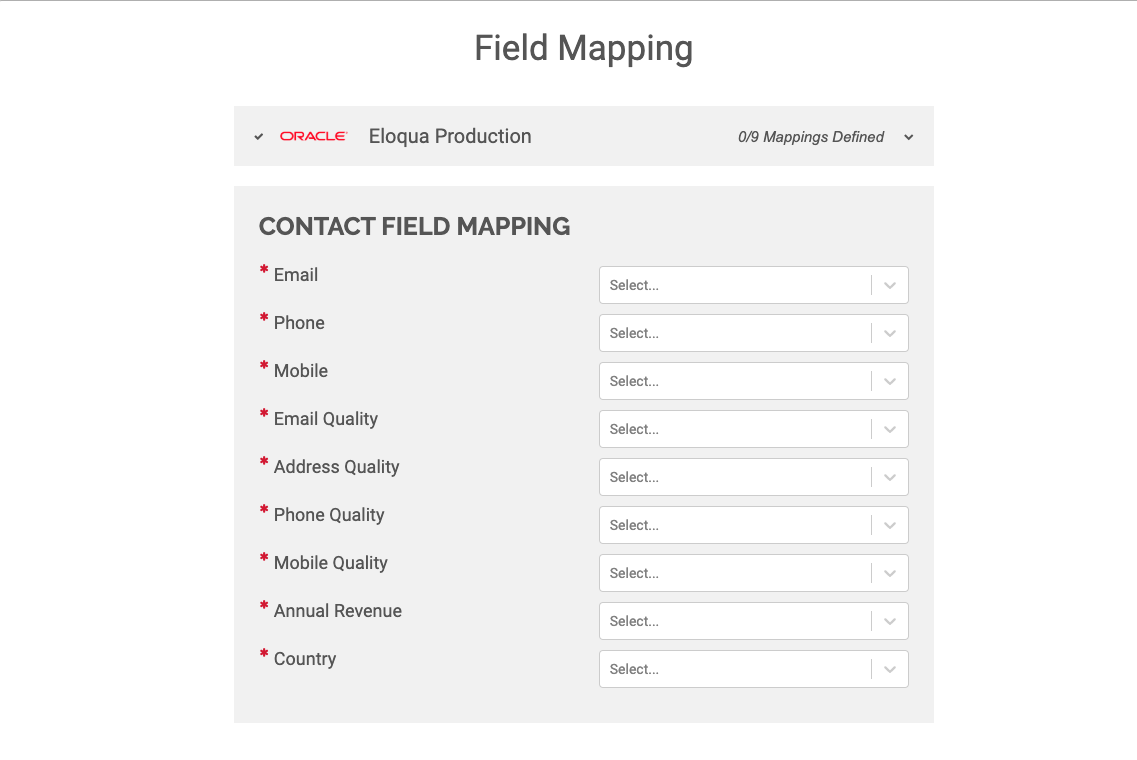
- Begin mapping each Command field to the Corresponding field in the MAP or CRM
Note: Quality Fields are custom fields that track data validity for each channel. For more information on Sureshot Data Validation services contact your Client Success Manager or visit https://sureshot.io/data-enrichment/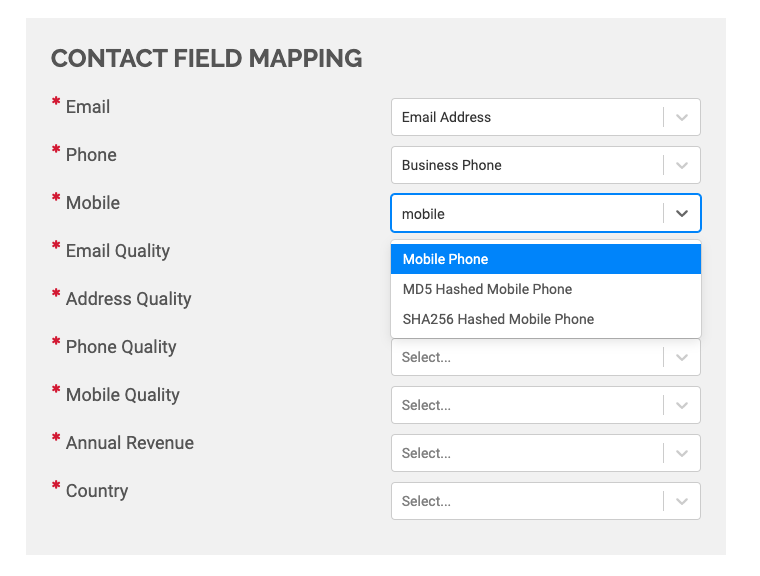
- Once mapping is complete click "Save"

- The user will now be redirected to the Command Dashboard. Command will begin analyzing the connected sources. Data will be available shortly.
- The user may access Command's configuration menu at any time using the
 icon
icon - Click the
 icon to select a different organization
 - Click
 to log out completely
For more information view the Command Dashboard Guide